
Using AI features
AI has been added to the PsychWriter Pro to further assist writers of reports in making the report writing process more time efficient.
The AI Writer Assistant can be a useful tool to generate basis interpretative narrative, but it should not be considered a final written product. What is missing from the AI Writer Assistant generated text is the qualitative information that the test examiner noted during the performance of the specific tests. Examples of qualitative behaviors can include examinee variables (e.g., effort, motivation, distractibility), situational variables which affected test performance (e.g., interruptions in testing, ambient noise levels, comfort level of testing room), and integration of themes of interpretation from other sections of the report such as background information or other test result interpretative sections. Likewise. the AI Writer Assistant can be a useful tool to generate recommendations, but it should not be considered a final written product. The professional using the PsychWriter Pro assumes the ultimate responsibility in the validity and appropriateness of any recommendations generated by the AI. Also guard against providing too many recommendations which will overwhelm the reader of the report and then run the risk that no recommendations are implemented.
There are main AI features:
- AI Tools – modify selected text in multiple user selected ways.
- AI Writer Assistant – generate original text based on prompts entered by the user.
Features of AI Tools
The PsychWriterPro has multiple narrative boxes used by the professional to explain demographic sections (e.g., educational history), test results (e.g., measures of sensory functions), or recommendations. After a professional enters a narrative, the AI tools will appear when the narrative text is highlighted by the user.
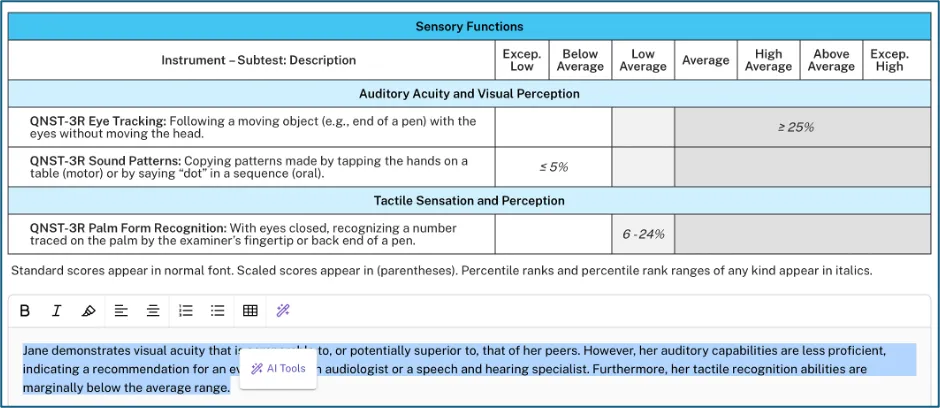
By clicking on the AI Tools icon the following options appear:
- Simplify – makes the highlighted text easier to understand.
- Fix Spelling & Grammar – does just that to the highlighted text.
- Make Shorter – does just that to the highlighted text.
- Make Longer - does just that to the highlighted text.
- Summarize – summarizes longer highlighted text.
- Complete Sentence – AI completes a sentence in the highlighted test.
- Change Tone (submenu - see below)
- Translate (submenu) – Translates the highlighted text into either English, Spanish, French, or German.
Change Tone (Submenu):
- Academic – modifies the highlighted text to be in the format of formal, objective, and professional style used in scholarly texts like research papers and essays.
- Professional - modifies the highlighted text to be in the style of communication that is clear, concise, respectful, and objective, suitable for formal or business settings.
- Narrative – modifies the highlighted text to be in the tone or expression of the writer’s attitude.
- Parent-friendly - modifies the highlighted text to be in the tone that is less formal and has a warm feel to is.
As an example, if the “Professional” option under Change Tone were selected, the highlighted text would appear like this:
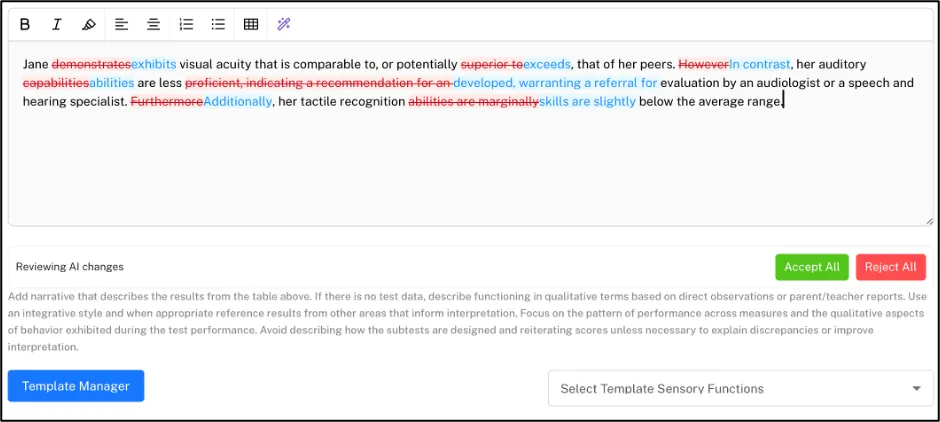
The PsychWriter Pro user would have the option to “Accept All” of the suggested changes to “Reject All” of the suggested changes.
The example below shows the text after the changes were accepted:

Note that the PsychWriter Pro user can continue to edit the modified text manually or highlight the text again and choose another AI Tool for suggested modification.
Added Bonus Feature in PsychWriter Pro
Whenever the explanatory or interpretative narrative is finalized by the professional, they have the option, unique to the PsychWriter Pro, to save that text as a template for later use with another patient/client/examinee. The “Template Manager” button allows the user to create a customized template of the finalized narrative. Copy the finalized text, click on the Template Manager button, give the template a name that describes the text, cut and past the text into the Template narrative box, use the Shortcuts to insert the placeholders as needed for things like the First Name or pronouns, then save the template. For all future patients/clients/examinees the template with the finalized text, which the user created and saved, will be available for use.
Features of AI Writer Assistant
The second AI feature integrated into the PsychWriter Pro is the AI Writer Assistant. In every narrative box within the program, there is an icon (highlighted in the picture below).

When the software user clicks on that icon the AL Writer Assistant appears:
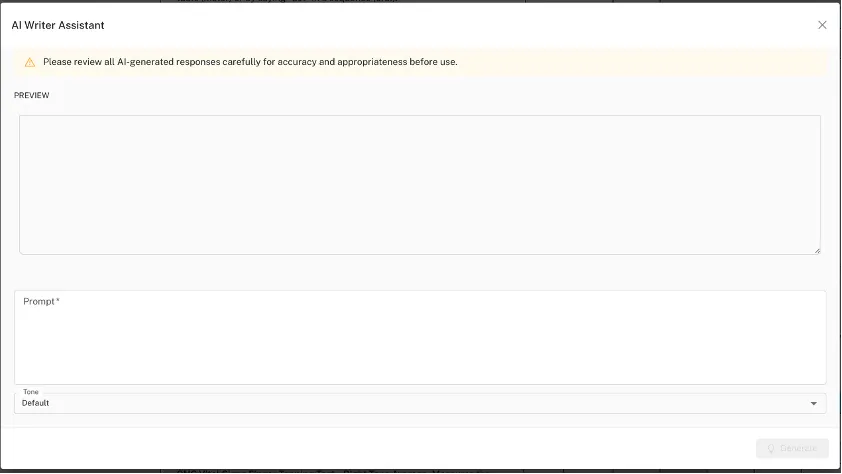
To use the AI Writer Assistant, the professional types in a prompt, chooses a tone (optional) from the pull down menu, then clicks on the Generate button. The generate AI text appear in the Preview box at the top.
Example: This prompt was entered: “Write an interpretative paragraph for a child who obtains all below average or lower scores on tests of coordinated finger and/or hand movements.”
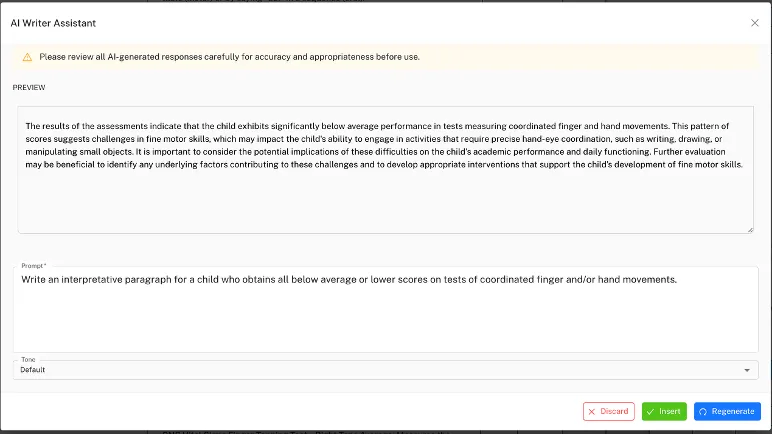
The Tone options may be selected before text is generated by AI or after.
The PsychWriter Pro user may Discard the generated text, Insert the generated text, choose a different tone and Regenerate the text using the buttons at the bottom of the screen.

Reminder: After any generated text is created, it can still be modified by the PsychWriter Pro user manually or using one of the AI tools (if the text is selected first). Also any generated text can be saved as a template for later use with new patients/clients/examinees.
Possible Uses of the AI Writer Assistant:
Assistance with interpretative statements for specific test results sections. Examples prompts could include:
- Write an interpretative paragraph for a child who obtains all below average or lower scores on tests of [coordinated finger and/or hand movements].
- Write an interpretative paragraph for a child who obtains a wide range of scores (from below average to above average) on tests of [coordinated finger and/or hand movements].
- Write an interpretative paragraph for a child who obtains all average or higher scores on tests of [coordinated finger and/or hand movements].
Important Reminder: The AI Writer Assistant can be a useful tool to generate basis interpretative narrative, but it should not be considered a final written product. What is missing from the AI Writer Assistant generated text is the qualitative information that the test examiner noted during the performance of the specific tests. Examples of qualitative behaviors can include examinee variables (e.g., effort, motivation, distractibility), situational variables which affected test performance (e.g., interruptions in testing, ambient noise levels, comfort level of testing room), and integration of themes of interpretation from other sections of the report such as background information or other test result interpretative sections.
Assistance with recommendations for specific interventions for specific people (e.g., parents, teachers, child/adolescent/adult). Examples prompts could include:
- Write an evidence-based recommendation for a 10 year old to improve basic reading skills.
- Give five recommended books for the parent to read to help them work with their ADHD child.
- DSM-V Diagnostic criteria for ADHD.
Added Bonus Feature in PsychWriter Pro
Whenever AI recommendations or diagnoses are finalized by the professional, they have the option, unique to the PsychWriter Pro, to save a recommendation/diagnoses as a template for later use with another patient/client/examinee. The “Template Manager” button allows the user to create a customized template of the finalized recommendation. Copy the finalized recommendation/diagnosis text, click on the Template Manager button, give the template a name that describes the recommendation/diagnosis, cut and past the recommendation/diagnosis text into the Template narrative box, use the Shortcuts to insert the placeholders as needed for things like the First Name or pronouns, then save the template. For all future patients/clients/examinees the recommendation with the finalized recommendation/diagnosis, which the user created and saved, will be available for use.